


In this series of blog posts I like to highlight some features of TFS/Visual Studio that people seem to overlook. In my day to day job I often see that people don’t know about certain feature that are available in Team Foundation Server, Visual Studio or some of the Powertools.
Some features are available as a Powertool. These can be downloaded from here
Earlier Posts
In this part…….
Editing multiple work items at the same time (Bulk Edit)
Sometimes it is useful to edit multiple work items at once. For example when you want to set the area or iteration for a group of work items, or if you want to set a value in another field. Visual Studio does not allow you to do this, besides editing work items and save them all at once.
However, there are 2 ways in which you can easily edit multiple work items in TFS at the same time. I will describe them both.
Excel
The easiest and most documented way to bulk edit work items is with the help of excel. In order to this you first create a Work Item Query in Visual Studio
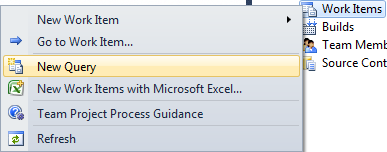
- Fill in your filters and save the query in the My Queries or Team Queries folder.
When the query is saved, right click the query and choose Open in Microsoft Excel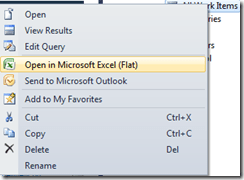
- The query results are opened in Excel
- Once open edit all the fields you like

- Once done, press the Publish button on the Team Tab on the Ribbon




When the Team Tab does not show, please read this blogpost
Web Access Client
For bulk edit Excel is really good, and a lot of people already know this. Less popular but effective as well is using the Web Access Client for Bulk Edit.
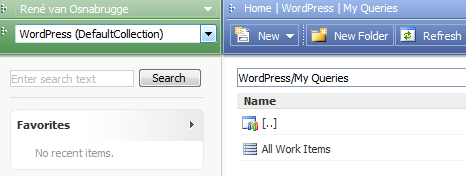
- Open the Web Access Client (WAC). Usually you can access the WAC by typing http://<tfs server>:8080/tfs/web
- Find the project and query you just created, or create a query in the WAC

- Run the query
- Select the Work Items you want to edit by CTRL-Click or Shift Click
- Choose Tools | Bulk Edit Selected Work Items

- Edit the fields you like and press Start

- All Work Items are updated


Enjoy!
 The Road to ALM
7 responses to “Hidden Gems in TFS–Part 3 Editing multiple work items at the same time (Bulk Edit)”
Can this be updated to show how this would work in TFS 2012?
Thanks for the feedback ! I will try to write this up soon !
Thank you. This will be very useful.
I just wrote part 10 of the hidden gems series where I talk about the feature in 2012! Thanks!
Thanks much you saved me hours of useless clicking!
What about bulk editing test steps?
You can use the grid view on the test hub in the web access client for this!
http://msdn.microsoft.com/en-us/library/dd286729.aspx