


When I first looked at the Source Control Explorer in TFS 2012, the thing I noticed first was the introduction of the “Reparent” Menu option in the context menu.

I know that this is not new, It was there in Visual Studio 2010 as well only it was hidden away deep down in the file menu.

I will be honest, until a few weeks ago I never used it. I did not have a scenario where this was handy and I could not really understand why someone wanted to Reparent a branch.
The scenario
The scenario I had was actually pretty obvious. For the purpose of this blog I simplified it a bit but it is still the same thing.
Imagine you have a Generic Component. This is used in several project. You created a branch of a version of this Generic Library. As you can see in the picture below. The Generic MAIN was release to Release 2.0 and this Release is now used in a project.

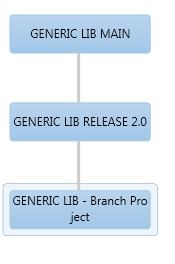
In the meanwhile, people worked on Version 3.0 of the Generic Libraries. This was released before the project was finished. The project now wants to use the newest version of the Generic Libraries. This is scenario that makes sense.
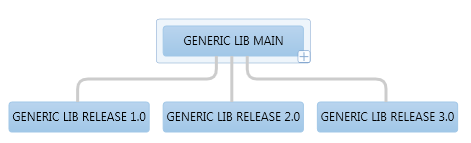
When I came across this, I thought of the Reparent option. Just Reparent the Project Branch to the 3.0 Release and Voila! All Fine.
Almost …..but not really..
How Reparenting works
When you click reparent on the target branch, you initially see the following picture.

That is strange. How can you point to another parent then? The solution is baseless merging. First you do a baseless merge of the new parent to the target branch. With this action you set “a” relation between the 2 branches.
Baseless merge is something you do from a command prompt. Open a Visual Studio Command prompt, navigate to the workspace directory of your new parent branch and execute the following command
tf merge /recursive /baseless "$/GenericLibraries/RELEASES/GENERIC LIB RELEASE 2.0" "$/BranchProject/GENERIC LIB – Branch Project"
After this action you have pending changes. Check in the changes and view history on your target branch. You will see the merge action. When you choose “Track Changeset” on the merge action you see a nice picture drawn of you latest actions.


Now the relation is put into place, select the target branch and select the “Reparent” option (VS 2010 file menu, VS2012 Contect Menu—See above). This shows the current parent and the new parent. Select the new parent and press “Reparent”.

After this action the new parent is set.
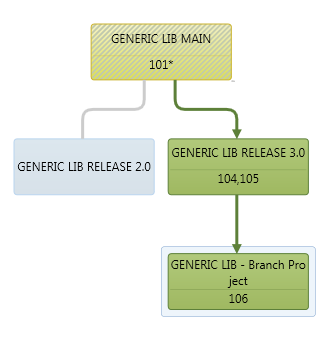
Hope this helps!
 The Road to ALM
13 responses to “Reparent of a TFS Source Controlled Branch. Why and How !”
Hi Renevo
Nice article, just what I needed, thanks.
/Martin
Just wanted to add, baseless merges are now possible through the UI. If you open up the standard merge wizard, then browse to the source and target locations you wish to merge, it will warn you that no relationship exists and that it will do a baseless merge.
Not sure if this was possible when you wrote this, no doubt it’s a vs2012.1 or .2 addition.
Your post steered me onto the right track with fixing my issue though, thanks!
Thanks.
Thank you very much for the advise. You are a life saver.
Though this blog talks about reparenting wherein we merge all the changes from the potential parent branch to a child branch… but there will be times when we *do not* need all the changes from the new parent branch. What do we do then? The idea is to go ahead and select all the changes and merge them to the child branch and then undo pending changes for the changes that are not required. Once all the unwanted changes are un-done, go ahead and check-in. Then as per the blog we would need to set the reparent option to the new parent. I know its not a clean approach but this works!
Thanks !
Thank you renevo, works perfectly for me.
Should the tf merge command line example say 3.0 (and not 2.0?)
You are right! Sorry for that ! I will change it asap!
That confused me as well. Thanks for pointing out.
Excellent! Thanks for sharing for the useful info.
Excellent! Thanks for sharing the useful information.
Hi, I used your solution but without the /recursive option. It works the same and has the advantage of avoiding code merging and reparenting as a single operation.