


With the introduction of TFS 2012 Web Access we lost the possibility to print work items from the web. The experience wasn’t great in the first place but now it disappeared.
Also in Visual Studio we do not have great printing possibilities. For some teams this is a big issue. They like TFS but also like paper. For example they want to print the User stories for use during the Sprint planning. They have the most relevant information on paper, they can write on it etc.
But how to print to an acceptable format…Not out of the box.
Power of office
After thinking a while about this issue and some brainstorming with my customer, we came up with a simple but effective solution. We use Office. No plugins, just MS Office….and we use………Excel and Mail Merge.
Since VS 2005 we can use Excel to export Work Item Queries to Excel. We can save the workbook and hit Refresh to reload the data. So we thought, if we combine this with MailMerge functionality we can have very nice printable templates in Word.
Steps to undertake
First create a work item query in Web Access or Visual Studio that shows all the fields you want to print. In my case:
- ID
- Title
- Description
- Acceptance Criteria
- Effort
- Work Item Type
Save the query as [PRINT – Product Backlog]

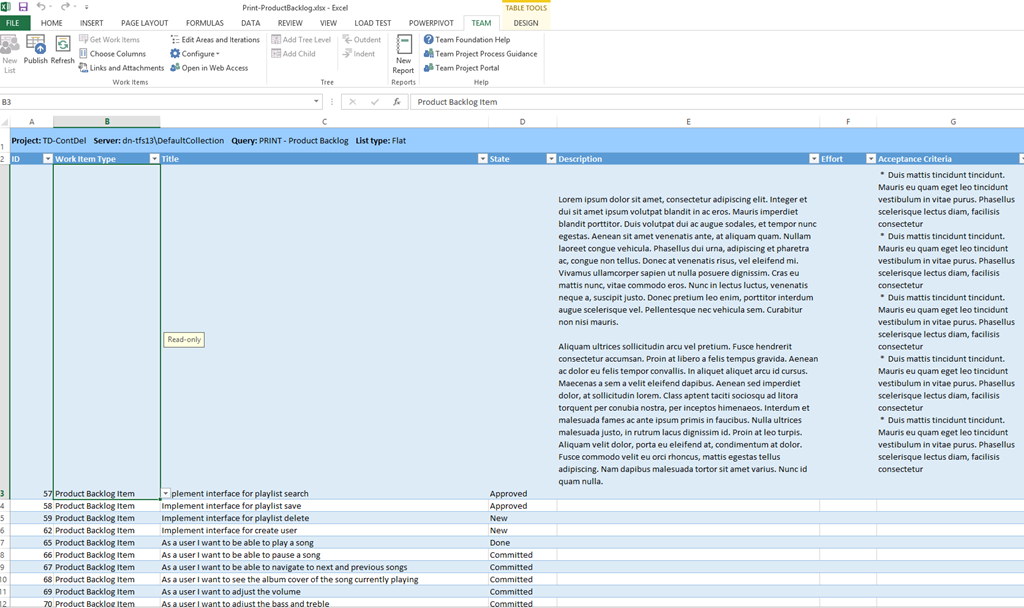
Then open the Query in Excel and save the workbook as [PRINT – Product Backlog]
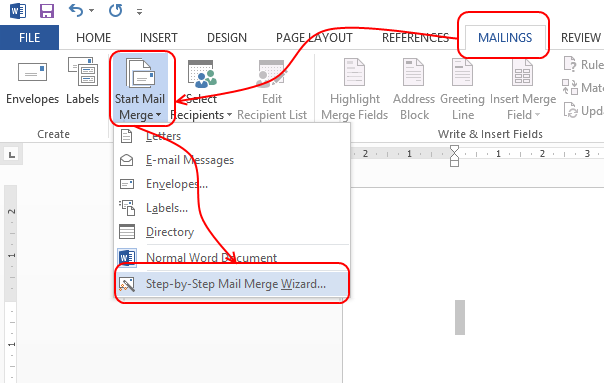
Then Open Word, navigate to the Mailings Tab and start the [Step by Step Mail Merge Wizard]
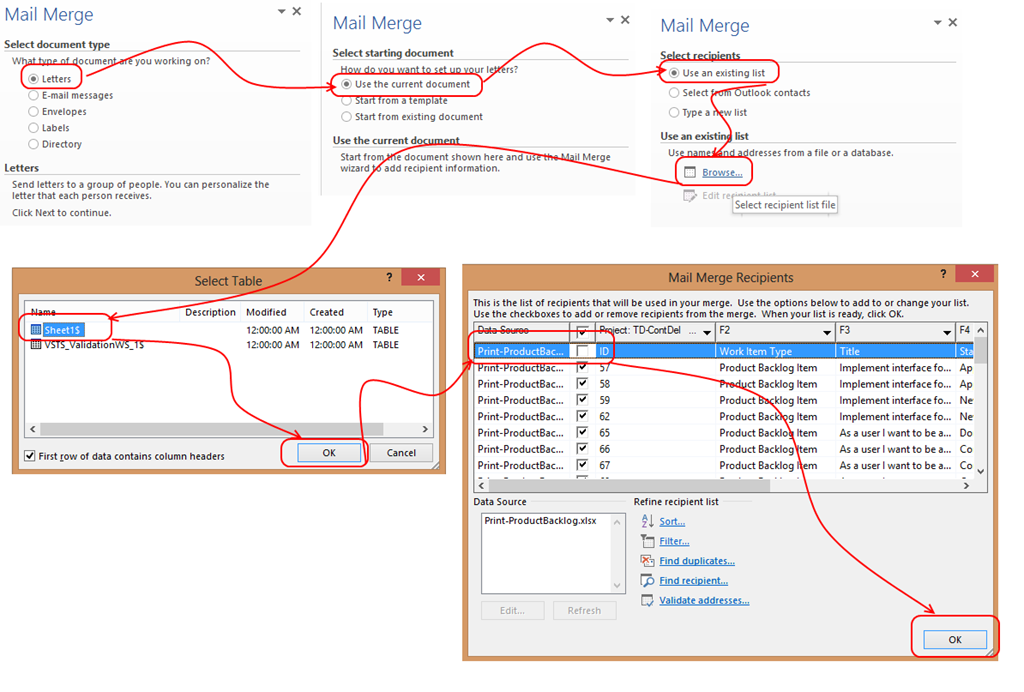
Walk though the wizard. Import the excel sheet and make sure you do not import the first row.
Now edit your lay-out in word and add your Mail Merge Fields. These are called F2, F3 etc. so check your field sequence.

Hit Preview and check your results!
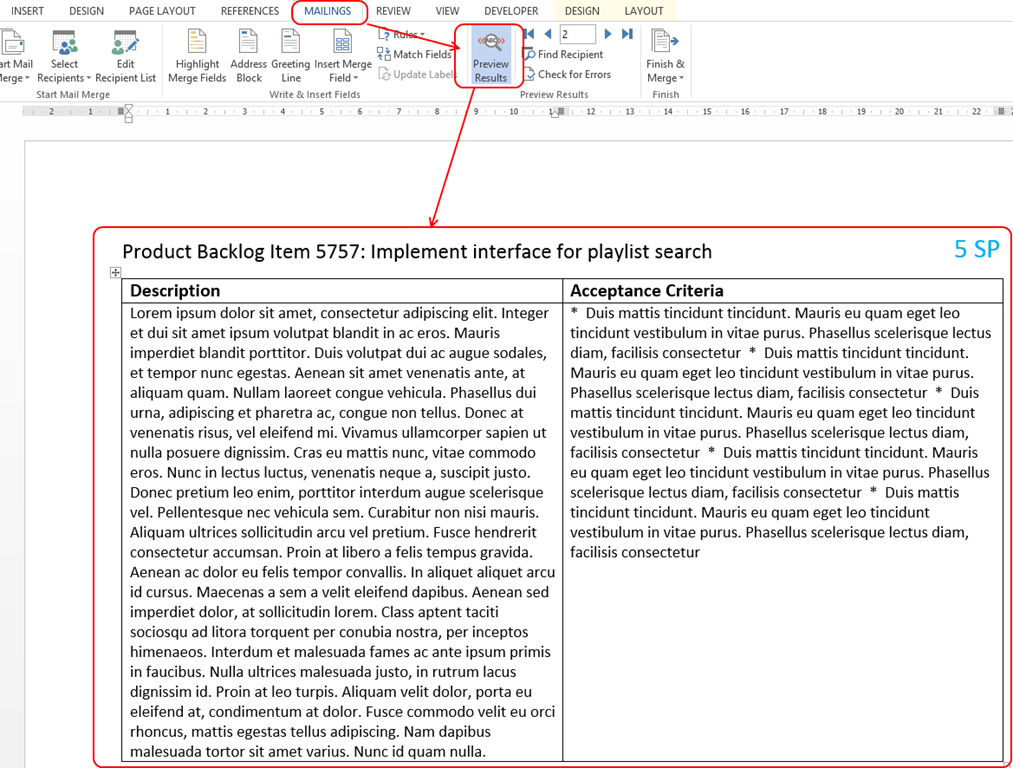
When everything looks good..Hit Finish and Merge and print ahead. I usually print to PDF and distribute this..
Save the word template in the same folder as your excel sheet. Unfortunately Word keeps the absolute path to excel so this might cause problems when distributing. This blog post explains how to replace the absolute path with a relative path.
http://devblog.alexsapps.com/2011/08/how-to-use-relative-path-to-data-source.html
Happy printing !
 The Road to ALM
7 responses to “Printing work items with Team Foundation Server”
Reblogged this on Adventures in Scrum and TFS and commented:
After our Product Owners were complaining a whole lot about not being able to print the backlog this post from Rene is more than welcome!
Another option although slightly different use I suppose is the Task Card Creator on Code Plex. We use it for all our physical Kanbans 🙂 http://taskcardcreator.codeplex.com/
Yes ! I was aware of this one but it did not completely fit my purpose. But thanks for the addition !
Can we have two work items side by side as a table?
I think it is possible. It is a Word Mail merge thing. The TFS data is just a dataset like any other. Look into the word mail merge features to achieve this. In VSTS there is no a great extension available to print cards which also should work on the latest version of TFS ! Good luck ! https://marketplace.visualstudio.com/search?term=Print&target=VSTS&sortBy=Relevance
Thanks! I was looking for a quick and easy way to generate some word docs containing our requirements. This is just what I wanted.
Very welcome !