


Update: 27-10-2016
Take a look at the official Microsoft Docker Images on DockerHub that also contain a Build agent
With the introduction of the new build engine in Visual Studio Online and Team Foundation Server 2015, Microsoft also introduced real cross-platform build capabilities,
The VSO-BuildAgent and tasks are both published as Open source on Github and allow you use and extend.any way you like.
With the ability to run cross-platform builds, I wanted to try out the build agent on Linux. The page on Github describes how to configure your linux machine, but this post from Kees Verhaar describes it much more detail.
This is great! But I wanted more. In my previous post I talked about Docker and how I like the idea of having isolated containers that run independently. Running a build agent is a perfect example where you want isolation. Surely you can run multiple agents on 1 machine, but you also need tools which will do the actual work. For that, you need to install compilers, tools etc.
Not every agent has the same requirements but they do have the same requirements when you share the same machine.
So I decided to try and create a Docker container with build agent. This container can then server as a base container and I can create separate containers for each need.
First I needed to set-up my Linux and Docker environment. I described that adventure in my post, [Get started with Docker on Azure for Microsoft Developers and Linux noobs]. After that the building of the Docker container was my next challenge.
Way of work
To create a Docker container from scratch, you need to write a DockerFile. Because I did not really know what I needed I decided to approach it differently. I created a blank Docker container and tried to make the Build Agent work there. I created a connection to my Linux machine in Azure and created a Docker container from the Ubuntu 14.04 image.
First I pulled it from Docker Hub
and then I run an instance with an interactive prompt so I can type commands within the container.
If everything is well, you are in a command prompt like this root@b408c7134d8e:/#
Then I followed the steps described on the blog of Kees and Github. Run these commands (not the # prefixed) one by one.
sudo apt-get update# INSTALL NODE.JS
sudo apt-get install expect -y
sudo apt-get install nodejs npm -y
sudo apt-get install nodejs-legacy -y#install the VSO Agent
sudo npm install vsoagent-installer -g#create some dirs where you can store your build agent
mkdir opt/buildagent
mkdir opt/buildagent/_work
Now that you have the vso agent installed, you need to run it. You cannot run as “root” user so you need to add a “service account” for this.
adduser vsoservice
Answers the prompts by providing a password and (optionally, just press enter to skip) other user details
Then go to your created directory and run the vsoagent-installer. This extracts (installs) the vso agent in the current directory.
cd opt/buildagent
vsoagent-installer
Because the agent runs under vsoservice, we need to assign rights to vsoservice (chown –> change owner)
sudo chown -R ${vso_service_username} /opt/buildagent
Then run the agent. You cannot run as root so you need to switch to the vsoservice user (su vsooservice). With the node agent/buildagent command you install the agent. Because this is the first time it asks you for credentials (use the alternate credentials) and url etc.
su vsoservice
#start up agent
node agent/vsoagent
# alternate username
# alternate password
# server url (https://name.visualstudio.com)
# agent name
# pool name
The configuration is saved in a hidden directory called .agent . If you want to reconfigure your agent, simply remove this .agent directory. You can find hidden directories by typing ls -a
ls -a
rm .agent
Et Voila ! We have our build agent running in a Docker container!!
Make it reusable
Now that we know all steps to configure our agent in a Docker container we need to make this more generic by creating a Dockerfile. On my host Linux I created a directory [docker] and created a new File called Dockerfile. I downloaded Visual Studio Code for editing files on the linux machine.

The Dockerfile basically contains all statements that we executed before, prefixed within some Docker specific commands.
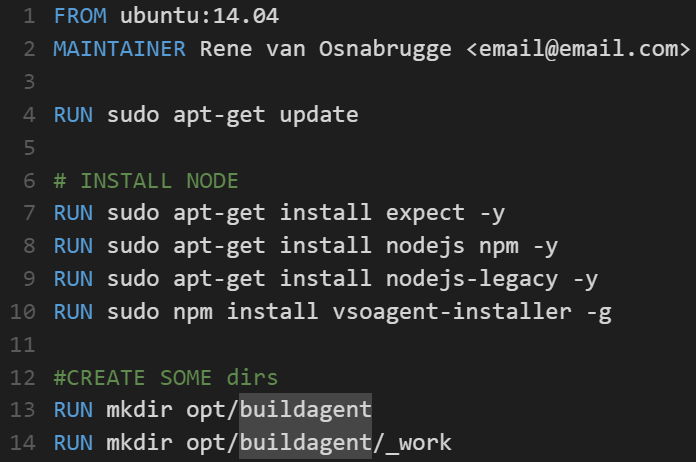
In the screendump above you see a part of the DockerFile. Let me explain a bit.
- Line 1: FROM ubuntu:14.04 is pointing to the base image you will use.
- Line 2: MAINTAINER says something about who maintains the image
- Line 4: RUN runs the command on the command line.
When I Dockerfied (is that a word?) all the commands in a Dockerfile, it was time to build an image from that file. You can create a Docker image by running (note the dot (.) at the end of the line. This means find a dockerfile in the current directory) the following command inside the docker directory
After this you have an image containing the installed agent. You can startup the docker container by running the commands
docker images#run image that you just created
docker run -t -i rvo/vsobuild:v1
But now you have to login to the image and configure the agent. I want to have a self containing image that I can run, which automatically starts a build agent. To configure the agent on the command line we need to navigate to our [opt/buildagent] directory and run the command [node agent/vsoagent] (just as explained above) and answer some questions about the installation. I wanted to automate those steps and answer the questions interactively.
On Linux there is a command line tool called Expect which enables you to build a file that answers interactive questions for you. You need to have Expect installed on your system and you can do that running the command
Then you need to create a file which contains the expect commands
spawn node agent/vsoagent
expect “Enter alternate username” { send “$env(vso_username)\n” }
expect “Enter alternate password” { send “$env(vso_password)\n” }
expect “Enter server url” { send “$env(vso_url)\n” }
expect “Enter agent name” { send “$env(vso_agentname)\n” }
expect “Enter agent pool name” { send “$env(vso_agentpool)\n” }interact
Note the $env(variable) placeholders. These are references to environment variables which we will send from the command line (later this post). Save this file in the same directory as your Dockerfile and call it ConfigureAgent.expect.
We can run this file by typing the following command within our Docker image.
We need to copy this file into our Docker container so that it is present when running it. For that we need to run the copy command in our Dockerfile

Then we need to run this file every time a Docker container is started. For that we need a shell script. So we create a new file in the same directory called run.sh. This file contains the run command of the expect file. Because we need to run as vsoservice instead of root the syntax is slightly different.
su $vso_service_username -c ‘expect ConfigureAgent.expect’
Save this script into a file called run.sh and add this file also to the Docker image by adding another COPY command and give it rights to execute.

The we only need to add a command to our Dockerfile that runs this script We can Fix this by adding the CMD command to our Dockerfile

Now we have a Dockerimage that runs a build agent. The only thing that we need to do now is fill the environment variables that are used in the expect file. We can use the ENV command in the Dockerfile to add those variables
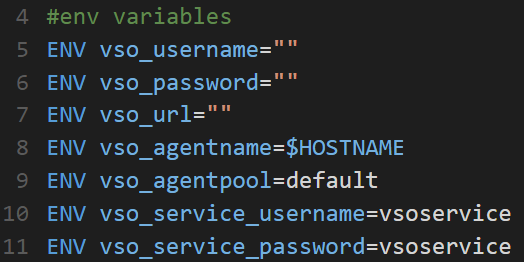
Those variables are present in the image once it is started and can be used everywhere. Now we need to build a new Docker image from this new Dockerfile and run this image by providing the environment variable values.
docker build -t rvo/vsobuild:v2 .#run the image
docker run -t -i -e vso_username=<vsousername> -e vso_password=<vsopassword> -e vso_url=https://name.visualstudio.com -e vso_agentname=MyFirstAgent rvo/vso:v2
When you ran these command you hopefully get this result
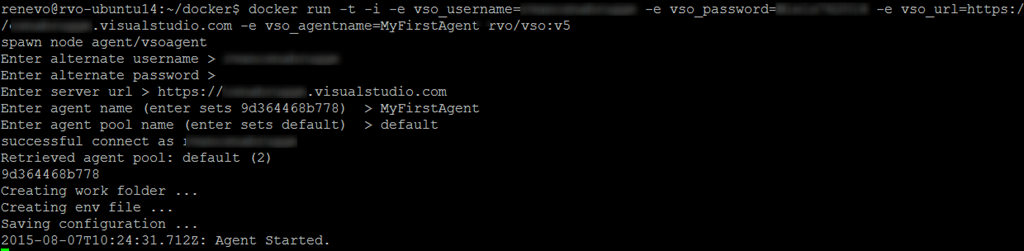
For your convenience I have the full Dockerfile, run.sh, ConfigureAgent.expect and example RunCommand.txt as a download here on github
Happy building !
.
 The Road to ALM
15 responses to “Running a Visual Studio Build vNext agent in a Docker container”
[…] In my next post I will talk about how to create a Docker container which runs a Visual Studio Build vNext agent […]
[…] https://roadtoalm.com/2015/08/07/running-a-visual-studio-build-vnext-agent-in-a-docker-container/ […]
[…] Running a Visual Studio Build vNext agent in a Docker container by Rene van Osnabrugge […]
[…] Visual Studio and Development Technologies MVP Rene Van Osnabrugge @renevo: Running a Visual Studio Build vNext agent in a Docker container […]
I just discovered this brilliant article after I watched connect;//2015…Thank you for sharing this…
Thanks! Appreciate it !
[…] and on startup I wanted to run a configured agent. I solved ths by using an expect file on Linux. Take a look at my post how I did […]
[…] Running Visual Studio Build Agent in a Linux Docker Container […]
[…] Running a Visual Studio Build vNext agent in a Docker container […]
Hi. I want to pull the code from TFS to my docker container. How can i do that
For TFVC you need to have the Team Explorer installed .. which I doubting works in the container. For Git you can just clone it …
Hi,
Thanks for your reply. could you guide me how to build visual studio project in linux docker container. the project includes C#, .net and sql projects.
You cannot do it in a Linux container …
I wonder if dockerized build agent can be used to build VS 2015 solution. May I do that?
What I would like is to run new docker container, this docker container clones a certain branch from a git repo and builds it.
If you use the windows server core image you can install Msbuild and git. You can use Chocolatey for that. I guess it would work if you do that.