



Currently I am building a pipeline that performs some actions on Azure. For example creating a Azure Storage Account. When doing this, I want to return some values from my Powershell script back into a variable of my Build Pipeline, so I can use this in another task.
After some searching I finally found out how to do this. I will explain with an example
First create an empty Build Definition and add 2 Powershell Tasks to it
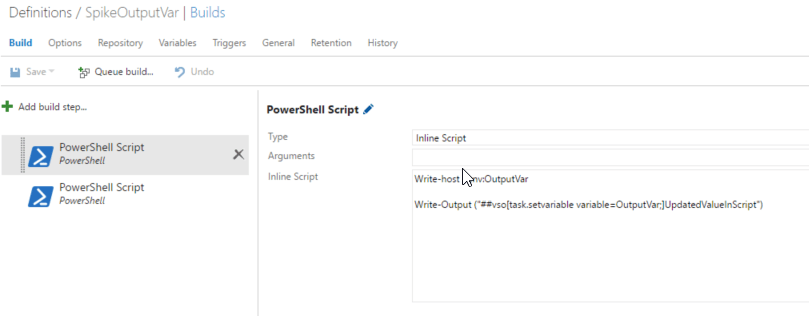
In the first inline Powershell task add one line to write the initial value and the second line to override the value.
Write-host $env:OutputVar

Write-Output ("##vso[task.setvariable variable=OutputVar;]UpdatedValueInScript")
You can set the variable by using the VSTS embedded functions.
##vso[task.setvariable variable=OutputVar;]UpdatedValueInScript
The Write-Output acts as an executor for this
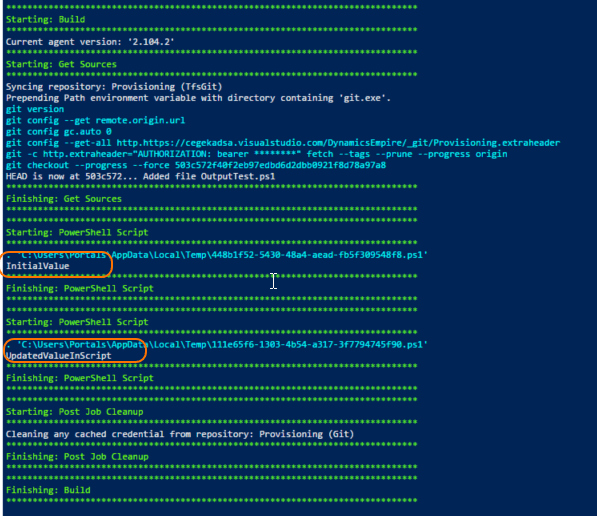
The second task just outputs the variable again
Write-host $env:OutputVar
After that run the build
Happy building!
 The Road to ALM
6 responses to “Set output variable in a Powershell VSTS Build Task”
Hi Rene,
there is also another way of doing it, through a cmdlet present in one of the modules that do ship with the agent. Some time ago I wrote about it here http://blog.majcica.com/2016/02/19/passing-values-between-tfs-2015-build-steps/
It is also available in the next task library, https://github.com/Microsoft/vsts-task-lib/blob/master/powershell/Docs/Commands.md#get-vststaskvariable
Cheers
Thanks! That helps!
Great solution, thank you for an excellent article.
[…] https://roadtoalm.com/2016/08/11/set-output-variable-in-a-powershell-vsts-build-task/ […]
Thank you very much, this was most helpful. I had been getting stuck on for the last day and it was starting to really peeve me. I found someone else mention this style of syntax but they weren’t very clear on how to actually use. What was missing was exactly what you did: show a functioning example.
Hats Off and thanks again.
Microsoft describes more on this page as well https://github.com/Microsoft/vsts-tasks/blob/master/docs/authoring/commands.md