


In my previous post I talked about the Excel workbooks in combination with the MS Scrum template. Excel is a great help in quickly organizing and editing your work items.
It is however kind of hard to see a good status overview of your work in the current sprint.
Main problem is, that Parent Items (Product Backlog Items) are not automatically set to Done when the child tasks are done. Because of the colors in the excel list this is also very hard to see.
My Delta-N colleague and friend Jasper Gilhuis (@jaspergilhuis) created a very nice solution for this. He created an excel sheet that applies color coding to your sprint backlog.

As you can see, the colors directly attend you on which PBI’s are not yet ready and which PBI’s can be set to done. All underlying tasks are either red, yellow or green, depending on their state.
Jasper was so kind to make this fully configurable as well and create a xlsm template which you can easily use. This template is attached to the post.
In order to use the sheet, you need to follow some additional steps.
First create a query in Team Explorer that define the required columns. Call this Color Progress (or something like that)
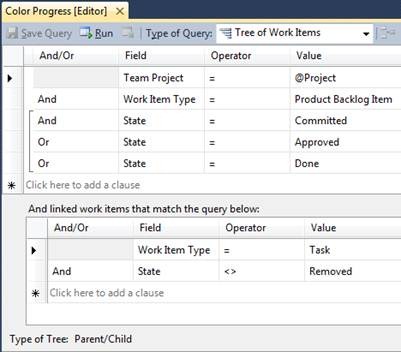
Make sure you include at least the columns:
- ID
- Work Item Type
- Title 1 (PBI title)
- Title 2 (Task title)
- Assigned To
- State
- Remaining Work
After that you open the Excel sheet and link the sheet to the query
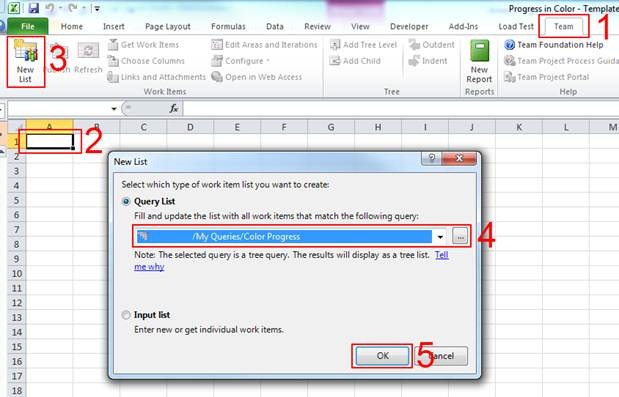
- Go to the Team Tab on the Ribbon
- Set your cursor on the A1 cell in the Work Item Progress sheet
- Press “New List”
- Select you Color Progress Query
- Click OK
The data will now be retrieved from TFS
If you want to change the colors, or if you are using a different template and thus other state names and work item types, you can use the Settings sheet to modify this.

This is really great and helpful!
Thanks Jasper Gilhuis, for your great work !
 The Road to ALM
11 responses to “Managing your sprint backlog easier with Excel”
This is truley great, but for some reason the first task under each PBI is getting highlighted rather than the PBI item itself. I haven’t looked at the macro to see what is going on, but wanted to see if anyone else had the same issue.
I just tried the excel sheet again, but it works fine..Have you loaded all the data when your cursor is in Cell A1?
Thanks for the Excel sheet, much appreciated!
the link to download is not found. could you please update?
It is there.http://sdrv.ms/OzFljJ BNecause it is a skydrive link, you cannot use it by right clicking it. Just click the link. You will be transferred to my skydrive. There you can download “Progress in Color – Template.zip” Hope this helps..
wow! nice! thanks ya.
btw, can this work for cross collection excel reports?
Not in excel, as it can only have a connection to 1 Team Project. What you can do, is create 2 excel sheets, and combine them with powerpivot. Just load the second excel as an external sheet.
[…] Some time ago, to be precise may 13th 2011, my collegue René van Osnabrugge posted the initial version of the Excel Template on “Managing your sprint backlog easier with Excel”. […]
[…] Some time ago, to be precise may 13th 2011, my collegue René van Osnabrugge posted the initial version of the Excel Template on “Managing your sprint backlog easier with Excel”. […]
Hie!
thanks for the reply 🙂
hmmm…i havent heard of power pivot yet…will try googling it up and trying it out 🙂
Would you by chance have any write up on it before? I love your easy to understand way of explaining.
thanks!
Thanks! I have one post on it here. https://roadtoalm.com/2014/07/17/tfs-reportsunleash-them-with-powerpivot/