


As you might have noticed from some of my previous posts on this blog, I really like reports. I wrote about how to customize them (here, here and here), how you should use them in your ALM implementation and how to use PowerPivot to your advantage.
When you read these posts, you probably will not be very surprised that I am very excited about the reporting stuff that is currently happening on VSO.
It was already possibly to make simple charts from Flat Lists Queries. This charting functionality allows you to visualize a query as a chart and pin it to your homepage. This process is very well described on MSDN.

But now…Since the update as of July 21st, it is possible to have some more advanced charts. Meaning charts that use another measure as Count of Work Items, and charts that display a trend.
You can think of examples as:
- Bug count over the last 4 weeks
- Number of hours remaining in the current sprint (burndown !)
- Cumulative flow (number of storypoints over time in a specific state)
- etc.
Walkthrough
Let me quickly guide you through a simple scenario to create a cumulative flow diagram for Product Backlog Items.
Create some items
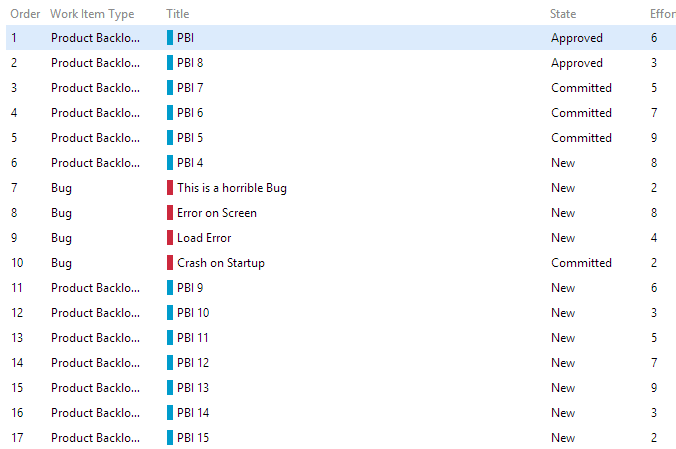
First create some PBI’s and assign a value in the Effort field
Create a work item query
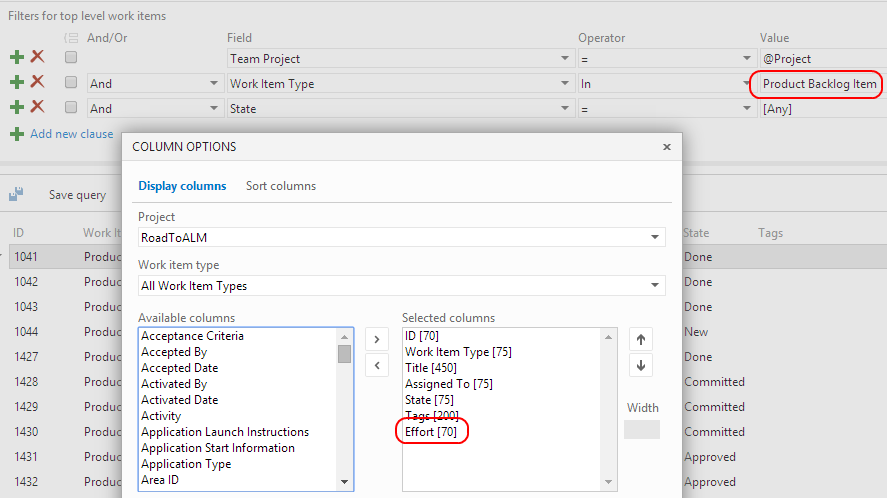
Create a query (Flat List) that lists all Product Backlog Items and make sure you add [Effort] in the output columns.
Save the query in the [Shared Queries] Folder and call it [Cumulative Flow PBI]
Create a chart
Create a chart by clicking the [Charts] sub Tab. Create a Stacked Area, group by State and select Sum of Effort as Values field.

Pin to homepage
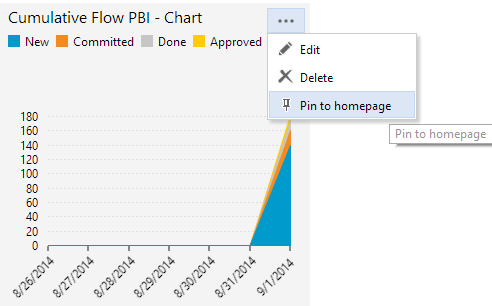
Once you created your chart, you can pin the chart to your homepage by clicking the […] and choose Pin to homepage.
That’s it. This is very cool stuff and sure there is more to come !
Happy charting!
 The Road to ALM
10 responses to “Create a Trend chart in Visual Studio Online”
Hi,
I’m having a problem, and is that I can only see “Count” as an aggregation measure. I need “Sum” for a burndown chart.
What to change to enable having “Sum”?
What version are you on ?
Forget it guys, the problem only appeared when using Internet Explorer 11, when using firefox, the dropdown list displays Count and Sum as available options for the aggregation functions.
See, this is what I mean (the one without frame is Internet Explorer 11):
Thanks for sharing !
Hi renevo,
Do you know how to create a burndown with a longer time span? The options offered only allow for 1, 2 or 4 weeks.
Unfortunately this is not configurable.
Hi Renevo,
we are using TFS CMMI and the Sum option not appear to us at all.
why 😦
Which version are you running? VSO? What are your trying to sum?
Hi,
I did some checks. You can use Sum in CMMI as well (on VSO). Make sure you have the column you want to sum as a column in your query. After that, select the column in the chart dialog and you can Sum.
https://osnabrugge.wordpress.com/wp-admin/edit-comments.php#comments-form
Hope this helps!